macOS: Essential Productivity Hacks for Developers
developer-toolsmacoswindow-managementtiling-window-manageryabaiskhdsketchybardotfileskeyboard-shortcuts
Verdict: A compact tour of a yabai and skhd setup; the spaces section, with a home space per app and a script that rearranges spaces for a second screen, is the part worth copying.
TL;DR
- mehdio (Oct 2024) walks through a keyboard-driven macOS setup in levels. It uses four tools: skhd for app shortcuts, yabai for tiling windows and spaces, SketchyBar for a custom status bar, and Raycast for everything else. The configs are in mehdio's dotfiles repository.
- The early levels need no new tools. Use the keyboard instead of the mouse, and move the dock to the left and hide it, since mehdio finds vertical space valuable in an editor and a browser.
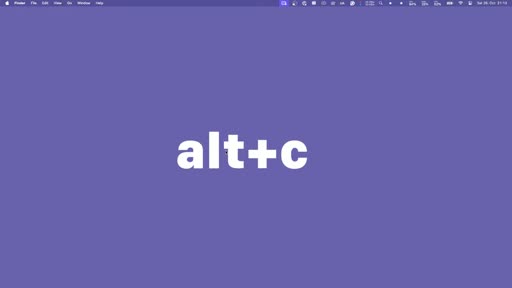
- skhd binds alt plus the first letter of an app's role: alt-B browser, alt-C code, alt-T terminal. mehdio calls Command-Tab "just a carousel".
- yabai tiles windows with Vim-direction focus keys, but it needs System Integrity Protection disabled and a scripting addition. mehdio says its real value is spaces: a fixed set created by script, a home space for each app, and a shortcut that sends any window to any space, including one on a second screen.
- SketchyBar replaces the macOS menu bar, which mehdio opens maybe once or twice a week, and shows which apps sit in which space.
Full summary
Four tools, in levels
mehdio opens with a claim: in the past year, mehdio has never been this productive on a Mac. Opening an app, switching tabs or finding something feels like mind control. mehdio then admits there is nothing magic about it: four tools, broken down step by step, with every config file in mehdio's dotfiles repository. The video is organised as levels, from habits that need no software up to what mehdio calls god mode.
Level 0 and 1: keyboard and screen space
The first level is to stop reaching for the mouse and trackpad. They are slow, and on a wide screen "I feel like I'm running a marathon here." mehdio's trick for building the habit is to put the mouse on the other side of where it usually sits; it becomes annoying enough that you find the keyboard shortcut instead.
Level one frees up screen space. On a fresh Mac the dock takes up room at the bottom, but developers spend most of their time in the editor and the browser, where extra vertical space is valuable. mehdio moves the dock to the left, sets it to hide automatically, and removes everything not needed. Switching apps is then the obvious question, and Command-Tab is out: mehdio calls it a carousel.
Level 2: app shortcuts with skhd
There are several ways to bind keys to apps, including some built into macOS. mehdio picks skhd because it is open source and keeps every shortcut in one dotfile that can live in a repository. It installs with brew install skhd, and the README lists two small configuration steps to finish the setup. The demo .skhdrc has three lines that run open -a:
- alt-C opens Visual Studio Code
- alt-T opens Alacritty
- alt-B opens Brave Browser
The rule is the first letter of the context or application. With that, switching between apps already works well.
Level 3: tiling with yabai
yabai is a tiling window manager, which mehdio describes as a tool that means you never think about window setup again and can split the screen into organised layouts instead of floating windows. It installs with Homebrew, but it needs System Integrity Protection disabled; the yabai wiki explains why and what that implies. In practice that means restarting the Mac in recovery mode and running one command, then configuring the scripting addition, which the wiki walks through with a sudoers entry for yabai --load-sa.
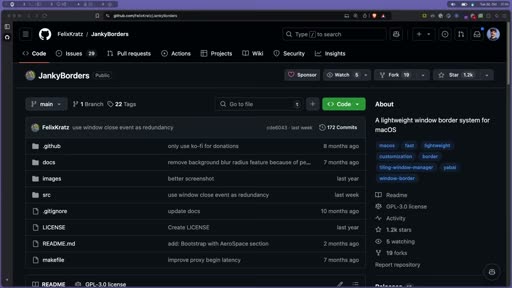
The two files that matter are yabairc and skhdrc. mehdio also installs JankyBorders, a lightweight open-source tool that draws a border around the focused window, with one line in yabairc. The default yabairc is good; padding and the gaps between windows are configurable. mehdio turns yabai off for apps that aren't meant to be full-size windows, such as macOS settings, with yabai -m rule --add and manage=off. The rule on screen lists Software Update, Dictionary, VLC, System Settings, zoom.us and Activity Monitor, among others.
mehdio binds the Vim directions to move focus (alt with H, J, K and L), and skhdrc also has bindings to swap windows, balance a space and make a floating window fill the screen. In the demo, a new browser window tiles next to the first; mehdio switches between them, splits horizontally, and zooms one temporarily to read an article, all from the keyboard.
Level 4: spaces
For mehdio, spaces matter more than window management: "I don't think you need more screens for developers you need just more space spaces." macOS has Spaces built in, but mehdio never got productive with them, for two reasons: you lose track of which app is in which space, and the default Control-arrow shortcut is slow.
yabai controls spaces dynamically:
- a script creates a default set of spaces with
yabai -m space --createand labels them (web, code, notion, messaging, edit and second_screen on screen) - yabai runs that script when a display is added or removed, so connecting a second screen rearranges the spaces; one screen gets about seven, and a second screen gets two extra
- a rule gives each app a home space, so VS Code always opens in space three
skhdrchas shortcuts to jump to a space and shift-alt plus a number to send the focused window to one
One macOS setting has to be on first: in Mission Control, "When switching to an application, switch to a Space with open windows". Because every app has a shortcut, pressing it always takes you to the right space. Moving an app to another screen becomes two shortcuts: focus Notes with its app shortcut, then shift-alt-8 sends it to a space on the second screen.
Level 5: a custom status bar
Once apps move between spaces, it is hard to remember which one runs where. mehdio's answer is SketchyBar, an open-source bar that can show anything and replaces the default menu bar. mehdio opens that menu bar maybe once or twice a week. It installs with Homebrew, and mehdio recommends starting from someone else's configuration; plenty of setups are shared on GitHub, and mehdio's can be copied into ~/.config. A setup has a sketchybarrc file and plugins written as Bash scripts, for battery, date, Wi-Fi, sound and, mostly, spaces. mehdio's bar shows each space's apps and the currently selected app.
God mode: Raycast
As a bonus, almost everything else mehdio does from the keyboard goes through Raycast, a command palette with many built-in extensions, its own shortcuts and custom scripts. mehdio uses it to search files and emojis, launch a specific Git project and search YouTube.
Key moments
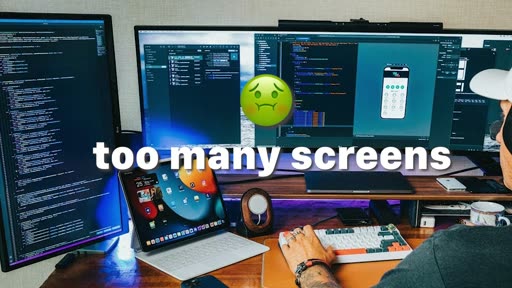
- [00:00] Mind control — the claim, over shots of the setup in use. frame_0001.jpg
- [00:43] Level 0 — drop the mouse; move it to the other side to force the habit. frame_0013.jpg
- [01:15] Level 1 — dock on the left, hidden, for vertical space.
- [01:58] skhd — alt plus the app's first letter: browser, code, terminal. frame_0015.jpg
- [03:01] yabai — tiling, after disabling System Integrity Protection and loading the scripting addition. frame_0018.jpg
- [04:43] Exclusion rules —
manage=offfor settings windows and dialogs. frame_0020.jpg - [05:52] More spaces, not more screens — why native macOS Spaces never worked for mehdio: losing track of apps and a slow Control-arrow. frame_0007.jpg
- [07:10] Space script — labelled spaces, rearranged when a display is connected. frame_0023.jpg
- [08:15] Send to a space — shift-alt plus a number moves Notes to the second screen. frame_0024.jpg
- [09:00] SketchyBar — a bar showing each space's apps, from the dotfiles. frame_0028.jpg
Hook microscope (0-10s)
-
Frames: 20 at 2 fps
Read these hook frames with the Read tool:
hook_frames/frame_0001.jpg(t=0.0s)hook_frames/frame_0002.jpg(t=0.5s)hook_frames/frame_0003.jpg(t=1.0s)hook_frames/frame_0004.jpg(t=1.5s)hook_frames/frame_0005.jpg(t=2.0s)hook_frames/frame_0006.jpg(t=2.5s)hook_frames/frame_0007.jpg(t=3.0s)hook_frames/frame_0008.jpg(t=3.5s)hook_frames/frame_0009.jpg(t=4.0s)hook_frames/frame_0010.jpg(t=4.5s)hook_frames/frame_0011.jpg(t=5.0s)hook_frames/frame_0012.jpg(t=5.5s)hook_frames/frame_0013.jpg(t=6.0s)hook_frames/frame_0014.jpg(t=6.5s)hook_frames/frame_0015.jpg(t=7.0s)hook_frames/frame_0016.jpg(t=7.5s)hook_frames/frame_0017.jpg(t=8.0s)hook_frames/frame_0018.jpg(t=8.5s)hook_frames/frame_0019.jpg(t=9.0s)hook_frames/frame_0020.jpg(t=9.5s)
-
Word-level transcript (27 words):
  [  0.07s] I've
  [  0.29s] never
  [  0.66s] been
  [  0.95s] this
  [  1.37s] productive
  [  2.10s] on
  [  2.28s] my
  [  2.56s] mic
  [  3.02s] in
  [  3.11s] the
  [  3.26s] past
  [  3.49s] year.
  [  3.96s] Everything
  [  4.45s] I
  [  4.50s] think,
  [  4.90s] like
  [  5.33s] opening
  [  5.78s] a
  [  5.86s] new
  [  6.10s] app,
  [  6.52s] switching
  [  7.10s] tabs,
  [  7.50s] or
  [  7.69s] finding
  [  8.38s] something,
  [  9.46s] is
  [  9.68s] peculiar.
- 0.0s: mehdio leans into the desk in a wide shot, opening with never having been this productive on a Mac in the past year.
- by 4.0s: Over-the-shoulder shot of the monitor with split windows, on "everything I think, like opening a new app".
- by 6.5s: Screen recording: an empty note appears, on "switching tabs".
- by 9.5s: Close-up of mehdio's face, deadpan, on "is like magic", leading into "it's like mind control".
Pattern: a bold personal claim over quick B-roll of the result, then a reveal ("there is nothing magic") and a promise of four tools broken down step by step.
Editorial profile
- Shots: 12
- Cuts/min: 1.09
- Mean shot length: 54.8s
- Median shot length: 54.66s
- Talking-head ratio: n/a (opencv not installed)
Fast-paced explainer with level title cards: to-camera shots in a purple-lit room, cut with screen recordings that carry a round webcam inset, meme clips and stock B-roll; the 1.09 cuts/min figure comes from the thin transcript-mode sample and understates the editing.
Quotable moments
- [00:52] "don't get me started on wide screen I feel like I'm running a marathon here"
- [01:55] "this is just a carousel"
- [03:09] "a tool that helps you never think about Windows setup again"
- [05:55] "I don't think you need more screens for developers you need just more space spaces"
- [09:11] "how many times did you actually need to go in this menu personally never"
Entities mentioned
- People: mehdio, Felix Kratz
- Companies: Apple, GitHub
- Tools / products: skhd, yabai, sketchybar, JankyBorders, Raycast, Homebrew, Mission Control, Spaces, System Integrity Protection, Visual Studio Code, Alacritty, Brave Browser, Notes, Notion
Concepts surfaced
- tiling-window-manager: windows tile instead of floating, and the keyboard moves focus and swaps, splits or zooms them.
- app-pinned-spaces: a fixed set of spaces, a home space for each app, and an app shortcut that always lands in the right space.
- Forcing a habit: move the mouse to the other side of the desk so reaching for it is annoying enough to learn the shortcut.
- First-letter shortcuts: alt plus the first letter of an app's role (browser, code, terminal).
- Vertical space first: editors and browsers benefit from vertical room, so the dock goes on the left and hides.
Frame timeline
What's said while each frame is on screen.
[00:00]
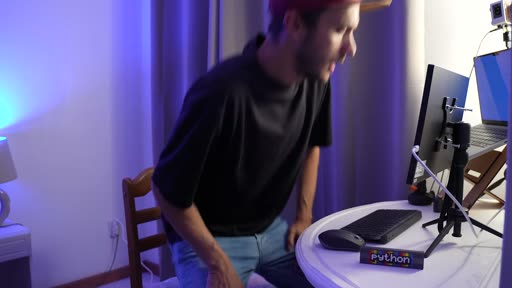
I never been this productive on my mic in the past year everything I think like opening a new app switching tabs or finding something is It's Magic it's like mind control but actually there is nothing magic I'm using four tools and I'm going to break down my setup step by step how I use it why I use it so that at the end of this video you also feel like you have super power without the blots I promise all the configuration you'll see in this video is available on my do file...
[01:24]

mic and you have this ugly do thing over there which is literally taking a lot of your screen space as developers we mainly spend time in the editor and in the browser and having this extra vertical Space is really valuable we mostly read stuff like this not like this like this not like this not like this so we will move the dock on the left and we are going to Auto IDE it and also of course clean up everything you don't need I know it feels hempty and alone how do I switch...
[02:17]

have all your configuration of your shortcut in a one file that you can get if you have ombre which suppose you have because it's a package manager you can install sqhd by doing a brew install skd check the rmy of the installation as you would need two small configurations to finalize your setup the next thing you need is to create your configuration file here for the sake of the demo I'll create three shortcuts one for the browser one for my terminal and one for my code...
[03:13]
manager is a tool that helps you never think about Windows setup again and give you the flexibility to quickly split space into different setup in an organized way in short you say goodbye to massive floating window all around again you can install yabai to umu but to make it work you'll have to disable system Integrity protection why is that needed and the implication of these are well explained in the Wiki of yabai pragmatically it's pretty easy you need to restart your...
[04:04]
quick tool that will be interesting to install is jeny borders again open source and it's a lightweight tool to give you a cue about which window I currently Focus you can install again using brew and there is nothing much uh by default you had to the configuration on to the Yaba RC file the default Yaba RC file configuration is pretty good so just be aware that you can configure a lot of things like padding between each window the space between up and down of the window...
[05:07]
window changing the focus I use the Vim Direction so if you see if I open a new window on my browser you'll see it's going next slide nicely and now I can use the shortcut to easily switch between one or the other window I can split horizontally if I prefer to do it so or Zoom temporary uh on one to read an article again everything with the keyboard it's pleasingly fast and you know what's also blazingly fast just liking this button and hitting subscribe you know it helped...
[05:56]
spaces so here is my optic I don't think you need more screens for developers you need just more space spaces all right that sounded a bit wrong but I mean the Macos has feature spaces and to be honest I never managed to get really productive with it until using yabi for the reason that you quickly get lost and there is two major problems I have in the past with this native features that where is the app I put in which space as switching space switching app using the...
[06:49]
and you have a clear understanding where things are and because you put a shortcut on your application you can always hit the app shortcut and it will you know guide you to the right space so how does this work first you need to get your mission control settings right so so for example when switching to an application switch to a space we open Windows has to be turned on well let's go by to the yabai RC and our H key hdrc files to set up a default number of space I call a...
[07:50]
will just use another rule Yi M rule add app to a specific space number so for instance now for whenever I open vs code you see it will be always on space three for the rest let's check out our uh shortcut in HKD RC so of course I have some commands to switch space easily and I have another command shift alt plus the number of space when I want to send a specific application to a given space so this start to be really powerful now you can move application but space which...
[08:36]
8 where uh there is a space on the second screen and voila the application has moved there two shortcuts and I move a given application to another screen at dare you you can do it faster so I know what you're asking but Med how do I see which application is running in which space if you start to move them temporarily is this everything in your mind now this is where a custom status bar is really helpful Next Level so level five custom status bar sketchy bar is a custom bar...
[09:34]
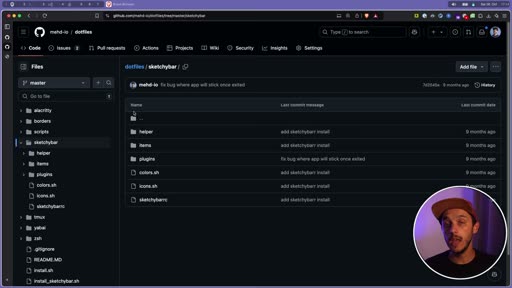
configurations many folks uh share their setup on gup and you can copy my configuration from my do file to put it in your own do config folder there is usually a file configuration sketchy bar RC and the plugin plugins are bash script and you can have them for battery level date Wi-Fi sound and more postly spaces so now I have a reference which spaces my application are plus what is the current selected application beautiful all right level s god mode that was it for the...
[10:57]

(no speech)
Transcript
Source: captions.
[00:03] I never been this productive on my mic in the past year everything I think like
[00:05] in the past year everything I think like opening a new app switching tabs or
[00:08] opening a new app switching tabs or finding something is It's Magic it's
[00:11] finding something is It's Magic it's like mind
[00:19] control but actually there is nothing magic I'm using four tools and I'm going
[00:22] magic I'm using four tools and I'm going to break down my setup step by step how
[00:26] to break down my setup step by step how I use it why I use it so that at the end
[00:28] I use it why I use it so that at the end of this video you also feel like you
[00:30] of this video you also feel like you have super power without the blots I
[00:32] have super power without the blots I promise all the configuration you'll see
[00:35] promise all the configuration you'll see in this video is available on my do file
[00:37] in this video is available on my do file repository the link is in the
[00:39] repository the link is in the description with that being said let's
[00:41] description with that being said let's go level zero keyboard the first thing
[00:44] go level zero keyboard the first thing you need to understand is that you need
[00:45] you need to understand is that you need to Trop this and it more this this is a
[00:49] to Trop this and it more this this is a tool which is super slow and don't get
[00:52] tool which is super slow and don't get me started on wide screen I feel like
[00:55] me started on wide screen I feel like I'm running a marathon here don't
[00:57] I'm running a marathon here don't realize how slow it can be to click
[00:59] realize how slow it can be to click through different different fix an easy
[01:01] through different different fix an easy way to figure out this is to put your
[01:03] way to figure out this is to put your mouse on the other side of its user
[01:06] mouse on the other side of its user place this is going to be so annoying
[01:08] place this is going to be so annoying and believe me you're going to figure
[01:10] and believe me you're going to figure out how to do it faster with your
[01:12] out how to do it faster with your keyboard shortcuts level one bringing up
[01:16] keyboard shortcuts level one bringing up screen space so you just started your
[01:18] screen space so you just started your mic and you have this ugly do thing over
[01:21] mic and you have this ugly do thing over there which is literally taking a lot of
[01:23] there which is literally taking a lot of your screen space as developers we
[01:26] your screen space as developers we mainly spend time in the editor and in
[01:28] mainly spend time in the editor and in the browser and having this extra
[01:31] the browser and having this extra vertical Space is really valuable we
[01:33] vertical Space is really valuable we mostly read stuff like this not like
[01:37] mostly read stuff like this not like this like this not like this not like
[01:40] this like this not like this not like this so we will move the dock on the
[01:42] this so we will move the dock on the left and we are going to Auto IDE it and
[01:45] left and we are going to Auto IDE it and also of course clean up everything you
[01:47] also of course clean up everything you don't need I know it feels hempty and
[01:49] don't need I know it feels hempty and alone how do I switch between
[01:51] alone how do I switch between application you may ask and don't even
[01:53] application you may ask and don't even think about the common tab this is just
[01:55] think about the common tab this is just a carousel
[01:58] a carousel joke level two short cut on apps there
[02:01] joke level two short cut on apps there are multiple solution to handle
[02:03] are multiple solution to handle application shortcuts even builing to
[02:05] application shortcuts even builing to Mac but the one I'm proposing is isy HD
[02:09] Mac but the one I'm proposing is isy HD because it's open source and it's
[02:11] because it's open source and it's support do file configuration so you
[02:13] support do file configuration so you have all your configuration of your
[02:15] have all your configuration of your shortcut in a one file that you can get
[02:18] shortcut in a one file that you can get if you have ombre which suppose you have
[02:20] if you have ombre which suppose you have because it's a package manager you can
[02:22] because it's a package manager you can install sqhd by doing a brew install skd
[02:26] install sqhd by doing a brew install skd check the rmy of the installation as you
[02:28] check the rmy of the installation as you would need two small configurations to
[02:31] would need two small configurations to finalize your setup the next thing you
[02:33] finalize your setup the next thing you need is to create your configuration
[02:35] need is to create your configuration file here for the sake of the demo I'll
[02:37] file here for the sake of the demo I'll create three shortcuts one for the
[02:39] create three shortcuts one for the browser one for my terminal and one for
[02:42] browser one for my terminal and one for my code editor now if I'm using the
[02:44] my code editor now if I'm using the given shortcuts I can easily switch
[02:46] given shortcuts I can easily switch between application I typically use the
[02:49] between application I typically use the first letter of the context SL
[02:51] first letter of the context SL application so altb for me is browser
[02:54] application so altb for me is browser altc is code and ALT is terminal now you
[02:57] altc is code and ALT is terminal now you have a pretty decent workflow management
[02:59] have a pretty decent workflow management to switch butting application let's get
[03:01] to switch butting application let's get into the real meat level three Windows
[03:03] into the real meat level three Windows management an amazing tool to help you
[03:05] management an amazing tool to help you manage Windows is yabai which is a
[03:07] manage Windows is yabai which is a tiling window manager and a tying window
[03:10] tiling window manager and a tying window manager is a tool that helps you never
[03:13] manager is a tool that helps you never think about Windows setup again and give
[03:16] think about Windows setup again and give you the flexibility to quickly split
[03:18] you the flexibility to quickly split space into different setup in an
[03:20] space into different setup in an organized way in short you say goodbye
[03:23] organized way in short you say goodbye to massive floating window all around
[03:26] to massive floating window all around again you can install yabai to umu but
[03:28] again you can install yabai to umu but to make it work you'll have to disable
[03:31] to make it work you'll have to disable system Integrity protection why is that
[03:33] system Integrity protection why is that needed and the implication of these are
[03:36] needed and the implication of these are well explained in the Wiki of yabai
[03:39] well explained in the Wiki of yabai pragmatically it's pretty easy you need
[03:41] pragmatically it's pretty easy you need to restart your MacBook in recovery mode
[03:44] to restart your MacBook in recovery mode run one command in the terminal and
[03:46] run one command in the terminal and you're done after that you need to
[03:48] you're done after that you need to configure your scripting addition again
[03:49] configure your scripting addition again if you're lost check out their Wiki I'm
[03:52] if you're lost check out their Wiki I'm going to cover the main part of the
[03:54] going to cover the main part of the configuration files which is the yabi RC
[03:57] configuration files which is the yabi RC and the skd RC for the shortcut another
[04:01] and the skd RC for the shortcut another quick tool that will be interesting to
[04:03] quick tool that will be interesting to install is jeny borders again open
[04:06] install is jeny borders again open source and it's a lightweight tool to
[04:08] source and it's a lightweight tool to give you a cue about which window I
[04:11] give you a cue about which window I currently Focus you can install again
[04:13] currently Focus you can install again using brew and there is nothing much uh
[04:16] using brew and there is nothing much uh by default you had to the configuration
[04:18] by default you had to the configuration on to the Yaba RC file the default Yaba
[04:21] on to the Yaba RC file the default Yaba RC file configuration is pretty good so
[04:24] RC file configuration is pretty good so just be aware that you can configure a
[04:26] just be aware that you can configure a lot of things like padding between each
[04:28] lot of things like padding between each window the space between up and down of
[04:31] window the space between up and down of the window you can also disable yabai on
[04:34] the window you can also disable yabai on specific application typically I do this
[04:36] specific application typically I do this for Mac OS setting and a few other
[04:38] for Mac OS setting and a few other things that are not designed to be a
[04:41] things that are not designed to be a full screen window for that you just use
[04:43] full screen window for that you just use yabi M rule at and you but the
[04:47] yabi M rule at and you but the application name for now I will leave it
[04:49] application name for now I will leave it the rest like this and I'll come back to
[04:51] the rest like this and I'll come back to the main features right after because
[04:53] the main features right after because the shortcut is actually what's the most
[04:55] the shortcut is actually what's the most interesting so now you can basically add
[04:58] interesting so now you can basically add a shortcut for any y
[05:00] a shortcut for any y which means uh zooming on a specific
[05:03] which means uh zooming on a specific window changing the focus I use the Vim
[05:07] window changing the focus I use the Vim Direction so if you see if I open a new
[05:09] Direction so if you see if I open a new window on my browser you'll see it's
[05:11] window on my browser you'll see it's going next slide nicely and now I can
[05:14] going next slide nicely and now I can use the shortcut to easily switch
[05:16] use the shortcut to easily switch between one or the other window I can
[05:19] between one or the other window I can split horizontally if I prefer to do it
[05:22] split horizontally if I prefer to do it so or Zoom temporary uh on one to read
[05:25] so or Zoom temporary uh on one to read an article again everything with the
[05:28] an article again everything with the keyboard it's pleasingly fast and you
[05:30] keyboard it's pleasingly fast and you know what's also blazingly fast just
[05:33] know what's also blazingly fast just liking this button and hitting subscribe
[05:35] liking this button and hitting subscribe you know it helped me if you already got
[05:37] you know it helped me if you already got value from this video everybody's happy
[05:39] value from this video everybody's happy all right so we have yabai up and
[05:41] all right so we have yabai up and running with the default configuration
[05:43] running with the default configuration but to be honest the most interesting
[05:45] but to be honest the most interesting feature is actually not the Windows
[05:47] feature is actually not the Windows management it's the spaces management so
[05:50] management it's the spaces management so let's go to the next level level four
[05:53] let's go to the next level level four spaces so here is my optic I don't think
[05:56] spaces so here is my optic I don't think you need more screens for developers you
[05:59] you need more screens for developers you need just more space spaces all right
[06:01] need just more space spaces all right that sounded a bit wrong but I mean the
[06:02] that sounded a bit wrong but I mean the Macos has feature spaces and to be
[06:04] Macos has feature spaces and to be honest I never managed to get really
[06:06] honest I never managed to get really productive with it until using yabi for
[06:09] productive with it until using yabi for the reason that you quickly get lost and
[06:11] the reason that you quickly get lost and there is two major problems I have in
[06:14] there is two major problems I have in the past with this native features that
[06:16] the past with this native features that where is the app I put in which space as
[06:20] where is the app I put in which space as switching space switching app using the
[06:22] switching space switching app using the default uh available shortcut control
[06:24] default uh available shortcut control arrow is super slow the beauty with
[06:27] arrow is super slow the beauty with yabai is that you can control space
[06:30] yabai is that you can control space dynamically so you can create a default
[06:32] dynamically so you can create a default set of space then you can put a default
[06:35] set of space then you can put a default space for each app this mean you can
[06:37] space for each app this mean you can allocate specific application to go to
[06:40] allocate specific application to go to specific space and finally you can still
[06:42] specific space and finally you can still move up from space with just a shortcut
[06:45] move up from space with just a shortcut and you have a clear understanding where
[06:47] and you have a clear understanding where things are and because you put a
[06:49] things are and because you put a shortcut on your application you can
[06:51] shortcut on your application you can always hit the app shortcut and it will
[06:53] always hit the app shortcut and it will you know guide you to the right space so
[06:55] you know guide you to the right space so how does this work first you need to get
[06:57] how does this work first you need to get your mission control settings right so
[07:00] your mission control settings right so so for example when switching to an
[07:02] so for example when switching to an application switch to a space we open
[07:04] application switch to a space we open Windows has to be turned on well let's
[07:07] Windows has to be turned on well let's go by to the yabai RC and our H key hdrc
[07:10] go by to the yabai RC and our H key hdrc files to set up a default number of
[07:12] files to set up a default number of space I call a custom script this script
[07:15] space I call a custom script this script is using a yabi space create command and
[07:19] is using a yabi space create command and a neat trick is that I also have a
[07:21] a neat trick is that I also have a default setup when connecting a second
[07:23] default setup when connecting a second screen so II will detect when I'm
[07:26] screen so II will detect when I'm putting another screen and rearrange the
[07:29] putting another screen and rearrange the specific number space to each screen if
[07:31] specific number space to each screen if I'm using one screen usually seven space
[07:34] I'm using one screen usually seven space is enough and if I'm using two screens I
[07:37] is enough and if I'm using two screens I usually put two other Extra Spaces on
[07:40] usually put two other Extra Spaces on the second screen to set up a rule for a
[07:42] the second screen to set up a rule for a default space for an application you
[07:44] default space for an application you will just use another rule Yi M rule add
[07:48] will just use another rule Yi M rule add app to a specific space number so for
[07:51] app to a specific space number so for instance now for whenever I open vs code
[07:54] instance now for whenever I open vs code you see it will be always on space three
[07:57] you see it will be always on space three for the rest let's check out our uh
[07:59] for the rest let's check out our uh shortcut in HKD RC so of course I have
[08:03] shortcut in HKD RC so of course I have some commands to switch space easily and
[08:05] some commands to switch space easily and I have another command shift alt plus
[08:08] I have another command shift alt plus the number of space when I want to send
[08:11] the number of space when I want to send a specific application to a given space
[08:13] a specific application to a given space so this start to be really powerful now
[08:16] so this start to be really powerful now you can move application but space which
[08:18] you can move application but space which means also button screen so if you have
[08:21] means also button screen so if you have a second screen and you say oh I want to
[08:23] a second screen and you say oh I want to move my notes over there well I just use
[08:26] move my notes over there well I just use the application shortcuts to focus on my
[08:29] the application shortcuts to focus on my notes and then I can just do shift alt+
[08:32] notes and then I can just do shift alt+ 8 where uh there is a space on the
[08:35] 8 where uh there is a space on the second screen and voila the application
[08:37] second screen and voila the application has moved there two shortcuts and I move
[08:40] has moved there two shortcuts and I move a given application to another screen at
[08:42] a given application to another screen at dare you you can do it faster so I know
[08:44] dare you you can do it faster so I know what you're asking but Med how do I see
[08:46] what you're asking but Med how do I see which application is running in which
[08:49] which application is running in which space if you start to move them
[08:51] space if you start to move them temporarily is this everything in your
[08:52] temporarily is this everything in your mind now this is where a custom status
[08:56] mind now this is where a custom status bar is really helpful Next Level so
[08:58] bar is really helpful Next Level so level five custom status bar sketchy bar
[09:01] level five custom status bar sketchy bar is a custom bar again open source that
[09:03] is a custom bar again open source that you can install and display whatever you
[09:05] you can install and display whatever you want and disable or rather hide the
[09:08] want and disable or rather hide the default one but why well how many times
[09:11] default one but why well how many times did you actually need to go in this menu
[09:14] did you actually need to go in this menu personally never or maybe you know once
[09:17] personally never or maybe you know once or twice a week so all that space on
[09:19] or twice a week so all that space on average is pretty much never you and I
[09:21] average is pretty much never you and I do wonder what we could put in place yes
[09:24] do wonder what we could put in place yes spaces again you can install sketchy bar
[09:27] spaces again you can install sketchy bar using umu and while that's done I would
[09:29] using umu and while that's done I would recommend to start from an existing
[09:31] recommend to start from an existing configurations many folks uh share their
[09:34] configurations many folks uh share their setup on gup and you can copy my
[09:36] setup on gup and you can copy my configuration from my do file to put it
[09:39] configuration from my do file to put it in your own do config folder there is
[09:41] in your own do config folder there is usually a file configuration sketchy bar
[09:44] usually a file configuration sketchy bar RC and the plugin plugins are bash
[09:46] RC and the plugin plugins are bash script and you can have them for battery
[09:48] script and you can have them for battery level date Wi-Fi sound and more postly
[09:52] level date Wi-Fi sound and more postly spaces so now I have a reference which
[09:55] spaces so now I have a reference which spaces my application are plus what is
[09:58] spaces my application are plus what is the current selected application
[10:00] the current selected application beautiful all right level s god mode
[10:03] beautiful all right level s god mode that was it for the windows workflow
[10:05] that was it for the windows workflow management we use hhd for shortcuts yabi
[10:09] management we use hhd for shortcuts yabi for Windows style manager and sketchy
[10:12] for Windows style manager and sketchy Bar for a custom bar to help us
[10:15] Bar for a custom bar to help us visualize what's happening in our space
[10:17] visualize what's happening in our space and as a bonus I want to say that
[10:19] and as a bonus I want to say that everything else I'm doing with the
[10:20] everything else I'm doing with the keyboard is pretty much using rcast
[10:23] keyboard is pretty much using rcast recast is a magic pallet for all kind of
[10:27] recast is a magic pallet for all kind of action many extension and available
[10:29] action many extension and available building and you can easily set up
[10:31] building and you can easily set up shortcut and custom script the common
[10:33] shortcut and custom script the common one I use is for search files emojis
[10:36] one I use is for search files emojis launching a specific git project or
[10:39] launching a specific git project or searching for a YouTube video and much
[10:41] searching for a YouTube video and much more if you a productivity nerd and you
[10:43] more if you a productivity nerd and you would like me to do a deep dive on
[10:45] would like me to do a deep dive on raycast let me know in the comments in
[10:47] raycast let me know in the comments in the meantime take care of yourself and
[10:50] the meantime take care of yourself and your keyboard peace
[10:52] your keyboard peace [Music]
All frames
Total: 12. Hero frames flagged with star.
frames/frame_0001.jpg(t=00:00)frames/frame_0002.jpg(t=01:24)frames/frame_0003.jpg(t=02:18)frames/frame_0004.jpg(t=03:14)frames/frame_0005.jpg(t=04:05)frames/frame_0006.jpg(t=05:08)frames/frame_0007.jpg(t=05:57)frames/frame_0008.jpg(t=06:50)frames/frame_0009.jpg(t=07:51)frames/frame_0010.jpg(t=08:37)frames/frame_0011.jpg(t=09:35)frames/frame_0012.jpg(t=10:57)